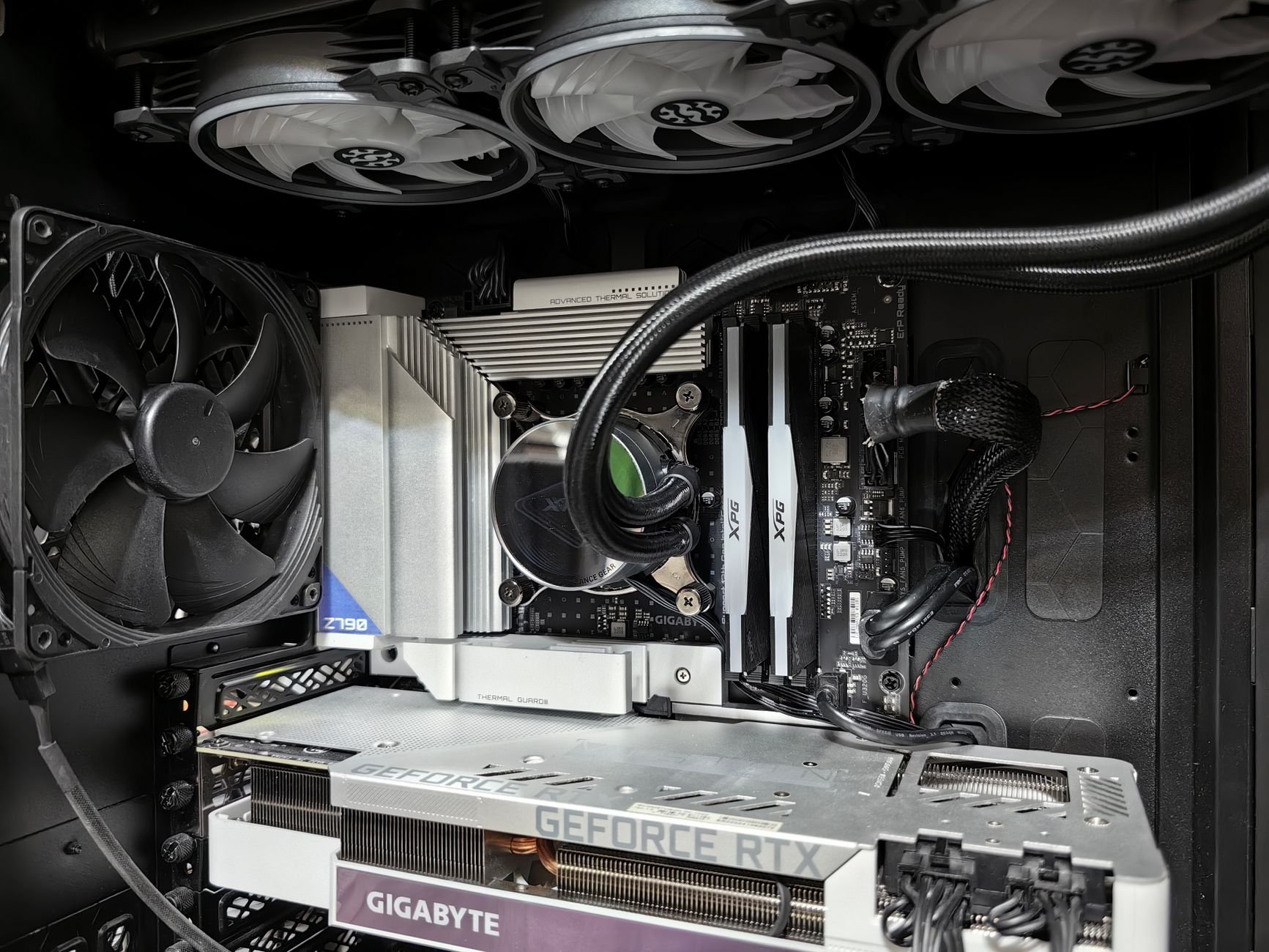
Your PC is bottlenecked when one part (CPU, RAM, GPU, or storage) hits its limit while the others sit partly idle. Watch Task Manager’s Performance tab during the slowdown: the part pinned near 100% while the rest stay low is your bottleneck.
“Is my PC bottlenecked?” is one of the most common questions new builders and gamers ask, and the internet’s answers are often confusing or sell you a new part you don’t need. The good news: you can check for yourself with tools already built into Windows. This guide explains what a bottleneck is, how the CPU, RAM, and GPU share the work, and how to find the part that is actually holding you back.
What a Bottleneck Really Is
A bottleneck is the narrow neck of a bottle. No matter how much water you pour in, it only flows out as fast as the neck allows. In a PC, one component hits its limit while the others sit partly idle, and that limit caps your overall performance.
Two points worth knowing up front:
- Every PC has a bottleneck. Something is always the slowest part. That is normal and not a problem in itself.
- It only matters if it hurts what you do. A bottleneck is worth fixing when you see stutter, low frame rates, or long waits in the tasks you actually care about.
Meet the Three Players
Think of your PC as a small kitchen.
- CPU (processor): the head chef. It reads the recipe, makes decisions, and tells everyone what to do. It handles game logic, background programs, and general Windows tasks.
- RAM (memory): the counter space. It holds what you are working on right now. Too little and everything gets shuffled in and out of slow storage. If you want the details, read RAM Explained: How Much Do You Actually Need in 2026.
- GPU (graphics card): the specialist who plates the food. It draws the images you see. In games, it does most of the heavy lifting at higher resolutions and settings.
A fourth player often gets forgotten: storage. An older hard drive can slow loading and make Windows feel sluggish no matter how strong the other parts are. See SSD vs HDD warning signs for how to check yours.
Step 1: Describe the Symptom
Before opening any tools, note when the problem happens. The pattern points to the likely cause.
- Low frame rates in games, even on low settings: often the CPU.
- Low frame rates that improve a lot when you lower graphics settings: often the GPU.
- Stutters, freezes, or hitching when many apps or tabs are open: often RAM.
- Slow boot and long load screens: often the storage drive.
- Slow everywhere, all the time: work through How to Fix a Slow Windows PC first, since software issues are more common than hardware ones.
Step 2: Watch Usage in Task Manager
This is the simplest test, and it is free.
- Start the game or program that feels slow.
- Press Ctrl + Shift + Esc to open Task Manager (or Alt+Tab out briefly).
- Open the Performance tab.
- Watch CPU, Memory, GPU, and Disk while the slowdown is happening.
Task Manager shows the GPU for most modern systems on current Windows 10 and 11. Now read the numbers.
Step 3: Read the Results
Compare what you see with these rules of thumb. They are guides, not laws.
- GPU near 95-100%, CPU well below that: the GPU is working as hard as it can. This is the healthy, expected result for gaming. Lower graphics settings or resolution, or upgrade the GPU, if you want more speed.
- CPU near 100% (or one core pinned) while the GPU sits well under 90%: the CPU is likely holding the graphics card back. Close background programs first, then consider a CPU upgrade.
- Memory near 90% or higher: Windows is running out of room and leaning on the drive. Close apps or add RAM.
- Disk stuck near 100%: the drive is the bottleneck, which is common with older hard drives.
- Nothing is maxed out but it still stutters: suspect heat, drivers, or background software before spending money.
One caution: the overall CPU percentage can hide a problem. A game that uses mainly one or two cores may show 30% total CPU while those cores are fully loaded. In Task Manager, right-click the CPU graph and choose Change graph to → Logical processors to see each core.
Step 4: Rule Out the Cheap Causes First
Many “bottleneck” problems are really something simpler. Check these before buying anything.
- Heat: a hot CPU or GPU slows itself down to protect itself. Clean dust from fans and vents with compressed air like Dust-Off. If temperatures stay high, fresh thermal paste such as ARCTIC MX-7 can help. Read about static electricity (ESD) before opening a desktop case.
- Drivers: update your graphics driver from the manufacturer.
- Background programs: disable heavy startup apps and close extra browser tabs.
- Power settings: on laptops, make sure the plan is not stuck on battery saver while plugged in.
- Single-channel RAM: two matching sticks usually perform better than one. Check the Memory tab for the number of slots used.
- Monitor refresh rate: confirm it is set to the highest available in Windows display settings.
Which Upgrade Helps Most?
If testing points to real hardware limits, here is a sensible order for most home users.
- Storage: moving from a standard hard drive to an SSD is usually the most noticeable upgrade per dollar. The Samsung 870 EVO 1TB is a popular, well-reviewed 2.5-inch SATA option.
- RAM: 16 GB is a comfortable baseline for most gaming and general use in 2026. Go higher only if your usage shows you need it. Match the type to your motherboard: for example the PNY 16GB DDR4 desktop kit for DDR4 boards, or the Corsair Vengeance 32GB DDR5 kit for DDR5 boards. Check your motherboard’s supported memory type first.
- GPU: best for improving frame rates and visual quality in games.
- CPU: often the most involved upgrade, since it can require a new motherboard or RAM. Confirm compatibility before buying.
Always check that new parts fit your motherboard, power supply, and case. Back up your files before major hardware changes. Our guide to backing up your PC walks you through it.
A Note on Online Bottleneck Calculators
Free calculators that give a bottleneck percentage are popular, but treat them with caution. They use generic assumptions and cannot account for your specific games, settings, resolution, or software. Real measurements on your own PC, like the ones above, are more reliable. If you want deeper tools, see Best Free PC Health Check Tools for Home Users.
The Takeaway
A bottleneck is not a defect. It is simply the part that runs out of room first. Describe the symptom, watch Task Manager while it happens, rule out cheap fixes, and only then spend money on the part the evidence points to. This is the same method I learned preparing for my CompTIA A+: test, don’t guess. More of that mindset is in 5 Things CompTIA A+ Taught Me About Home PC Troubleshooting.
Get the PC Troubleshooting Cheat Sheet
I’m putting together a PC Troubleshooting Cheat Sheet that condenses this kind of step-by-step testing into something you can keep next to your PC. Join the email list and I’ll let you know when it’s ready.
Have a build you are not sure about? Bring it to the Discord and we’ll take a look together.
Want to learn more? If any of this sounds familiar — if you grew up somewhere analog (mechanical age) and ended up somewhere digital OR if you just enjoy anything Tech related or Electronics in general — you’re in the right place. Come join the conversation in the Hooked On Gaming | Programming or DC Global Bots, Gaming & Trading Discords. You can also check out our YouTube Channel where I share videos of creators that I like and will begin to share videos of my own; Sly’s Analog and Digital Chronicles. I’d love to hear your story too.
Some links in this post may be affiliate links. If you purchase through them, I may earn a small commission at no extra cost to you. (paid link)